Sync your transactions and balances to Google Sheets
You can now sync your transactions straight into Google Sheets. Connect your Google account and Synci will keep a spreadsheet up to date for the accounts you pick, the same way it does for other destinations.
Setup is quick. Connect Google from the Destinations page, then either let Synci create a fresh spreadsheet for you or pick one you already have. Link a bank, brokerage, or crypto account to it and transactions start showing up. Your transfer start date, rules, and sync settings all carry over, so it behaves like the destinations you already know.
Pick the columns you want
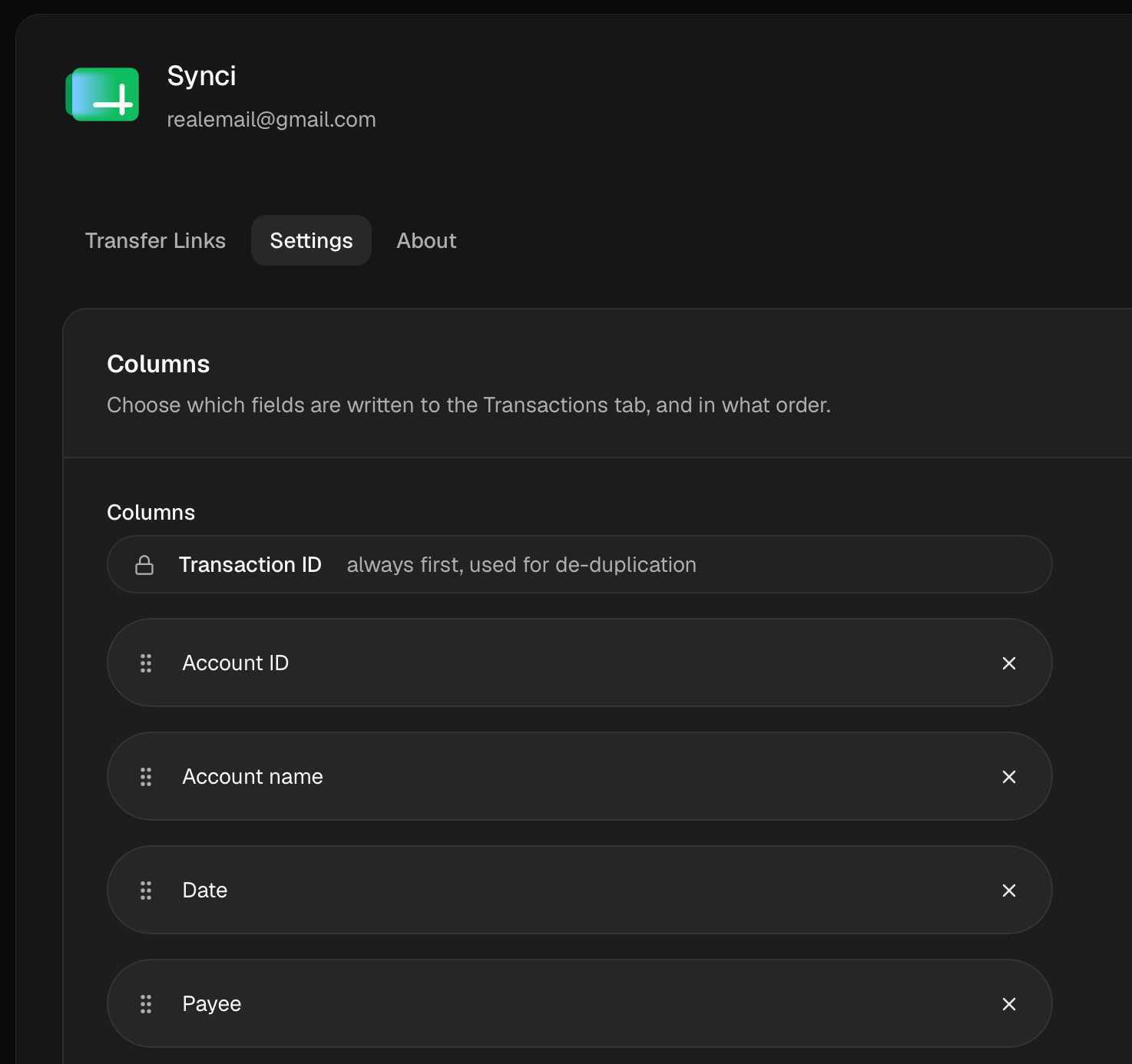
As always, we want users to stay in control of their data, so you get full control over which fields end up in the sheet. The defaults cover the basics (date, payee, description, amount, currency), but you can add almost anything Synci knows about a transaction: creditor and debtor details, IBANs, remittance info, merchant category codes, FX rates, the enriched data, and more. It's the same set of fields you use when building Rules, and you can change it per sheet whenever you want. Synci will automatically refactor the spreadsheet and backfill/remove column values as needed.
Balances, not just transactions
Each spreadsheet comes with two extra tabs. One keeps a current balance for every account (available and cleared), and the other records balances over time, which is handy if you want to chart how things are tracking.
A few things worth knowing
Synci can only see the spreadsheets it creates or the ones you pick, never the rest of your Drive.
Amounts go in as real numbers with dates in their own column, so formulas and pivot tables work without any cleanup.
New rows are added at the bottom in date order. Sort the sheet if you'd rather see the newest first.
Head to Destinations > Google Sheets to set it up.