Manual accounts: bank statements, loan payments, and investment tracking
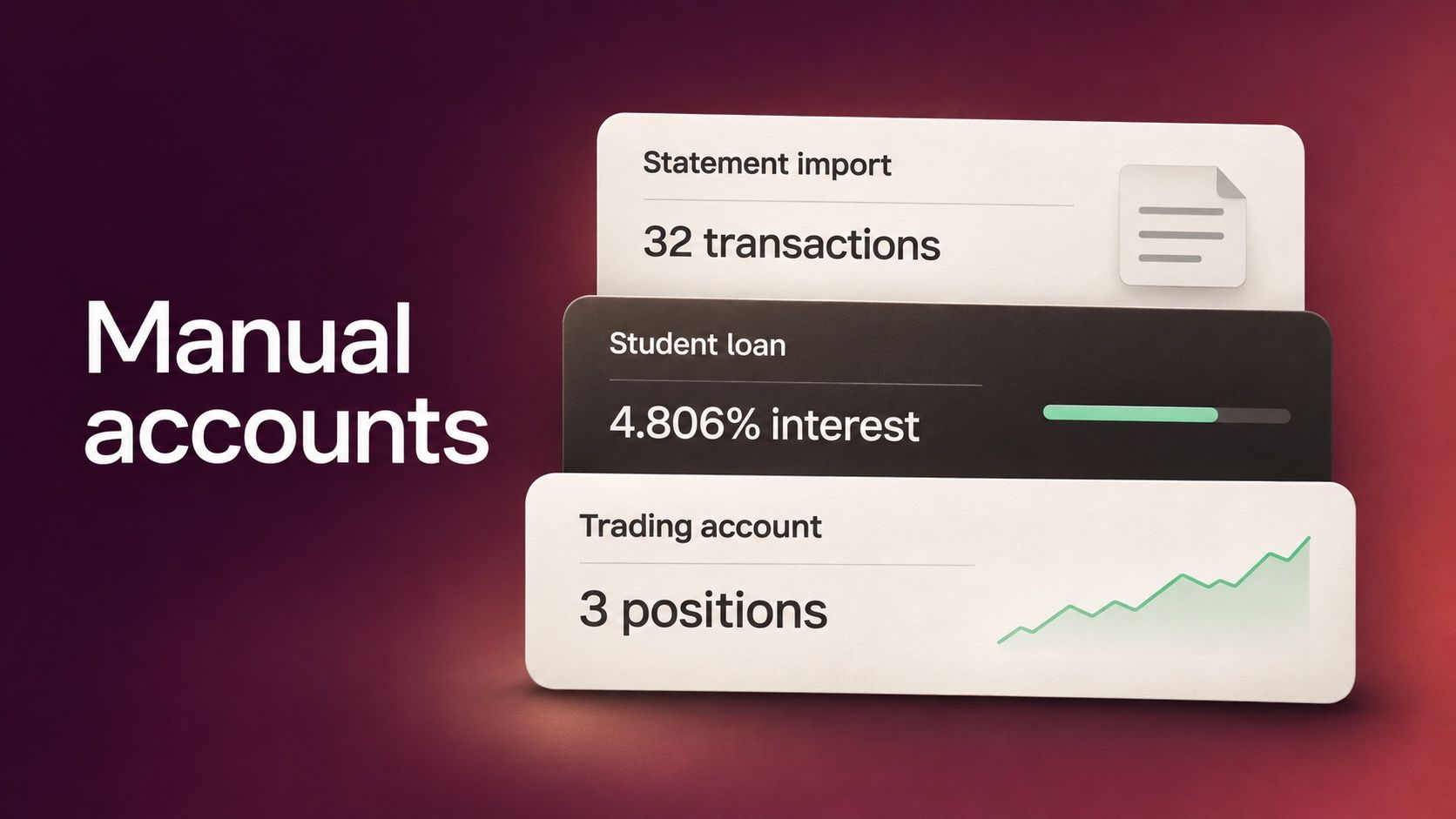
You can now track accounts in Synci even when your bank, lender, or broker doesn’t offer a connection. Open Manual Accounts in the sidebar to import a bank statement, track a loan as you pay it down, or add investments and let Synci keep their values up to date.
Import a bank statement
Under Bank accounts, choose Add a bank account and select Checking, Savings, or Card. You can import your first statement during setup or come back when you have a file. Synci reads CSV, OFX/QFX, and camt.053 statements.
For a CSV, Synci suggests which columns hold the date, description, and amount. Check the matches against a sample transaction, adjust them if needed, and save the mapping for your next statement. Before you confirm, the preview shows which transactions are new, which are already in the account, and which rows Synci couldn’t read.
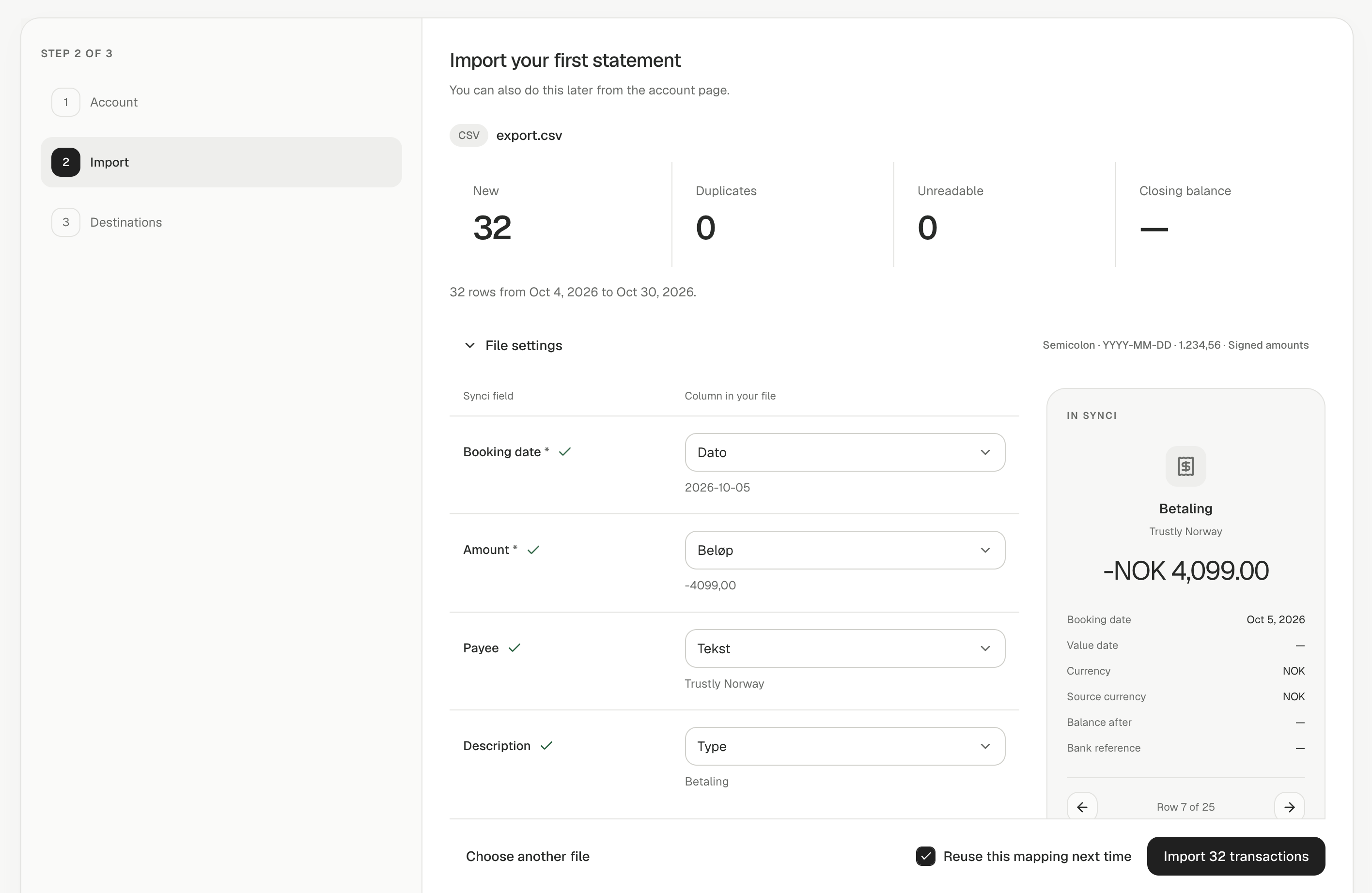
Imported transactions follow your usual rules and go to your linked destinations. If you imported the wrong statement, open the account’s Imports tab to undo that batch. Synci also removes those rows from destinations that support deletion.
Track loans and mortgages
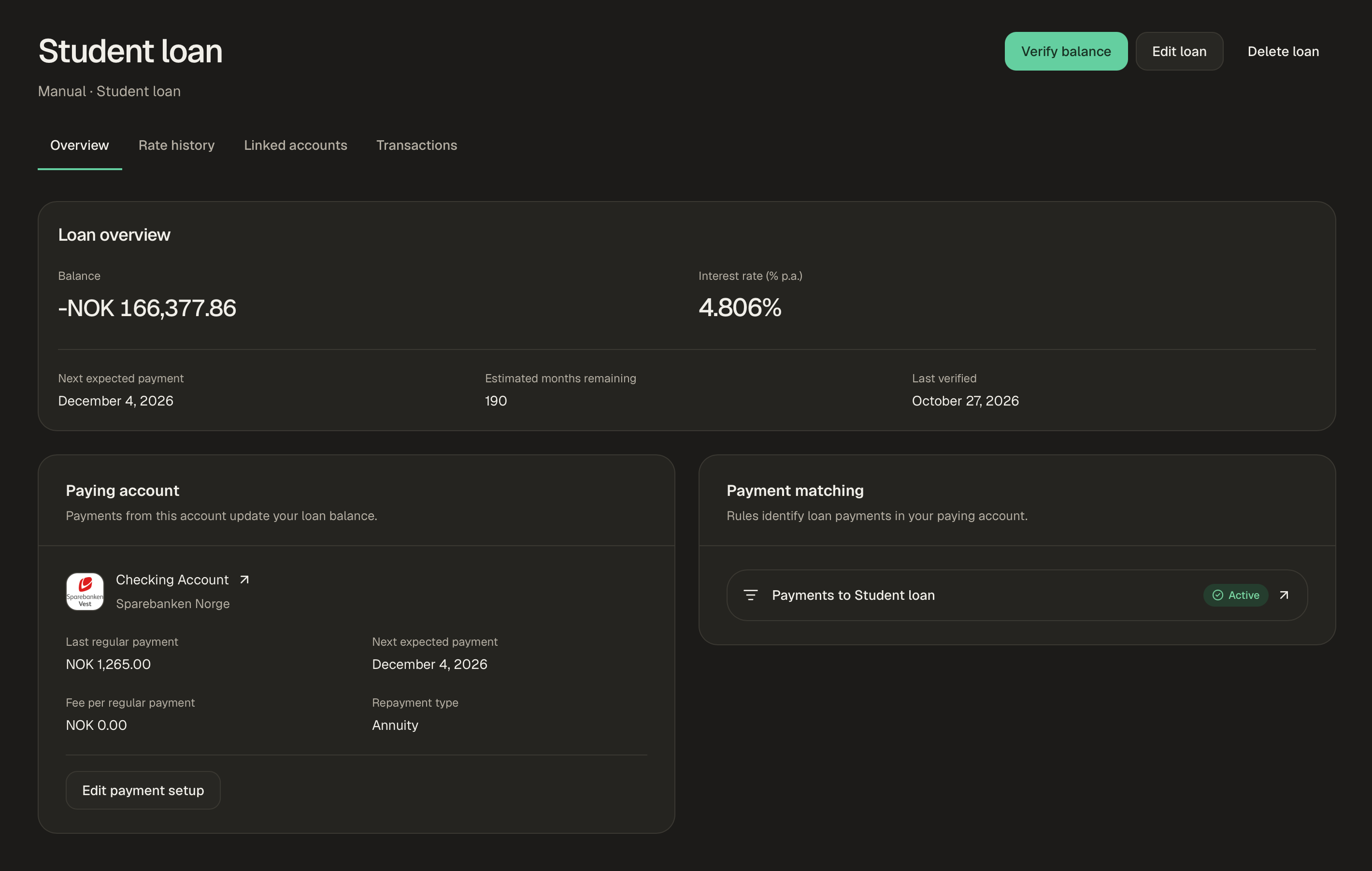
Under Loans & liabilities, choose Add a loan and enter the remaining debt, interest rate, and fee per payment from your lender’s statement. Pick the bank account you pay from and confirm a few past payments. Synci uses those examples to build a rule: when the next matching payment comes through, it updates the loan and records the interest and fee separately. You can use a monthly schedule if you don’t have a connected paying account.
If your regular payment changes, Synci asks whether your rate changed too. You can check the balance against your lender’s statement at any time and record a dated adjustment if the two differ.
A linked loan appears as an Other Liability account in YNAB, where the bank payment arrives as a transfer, or as a loan account in Lunch Money. In Google Sheets and Notion, the optional Entry type column distinguishes payments, interest, and fees. Loan data is also available through SimpleFIN, the API, and the MCP server.
Track investments with daily closing prices
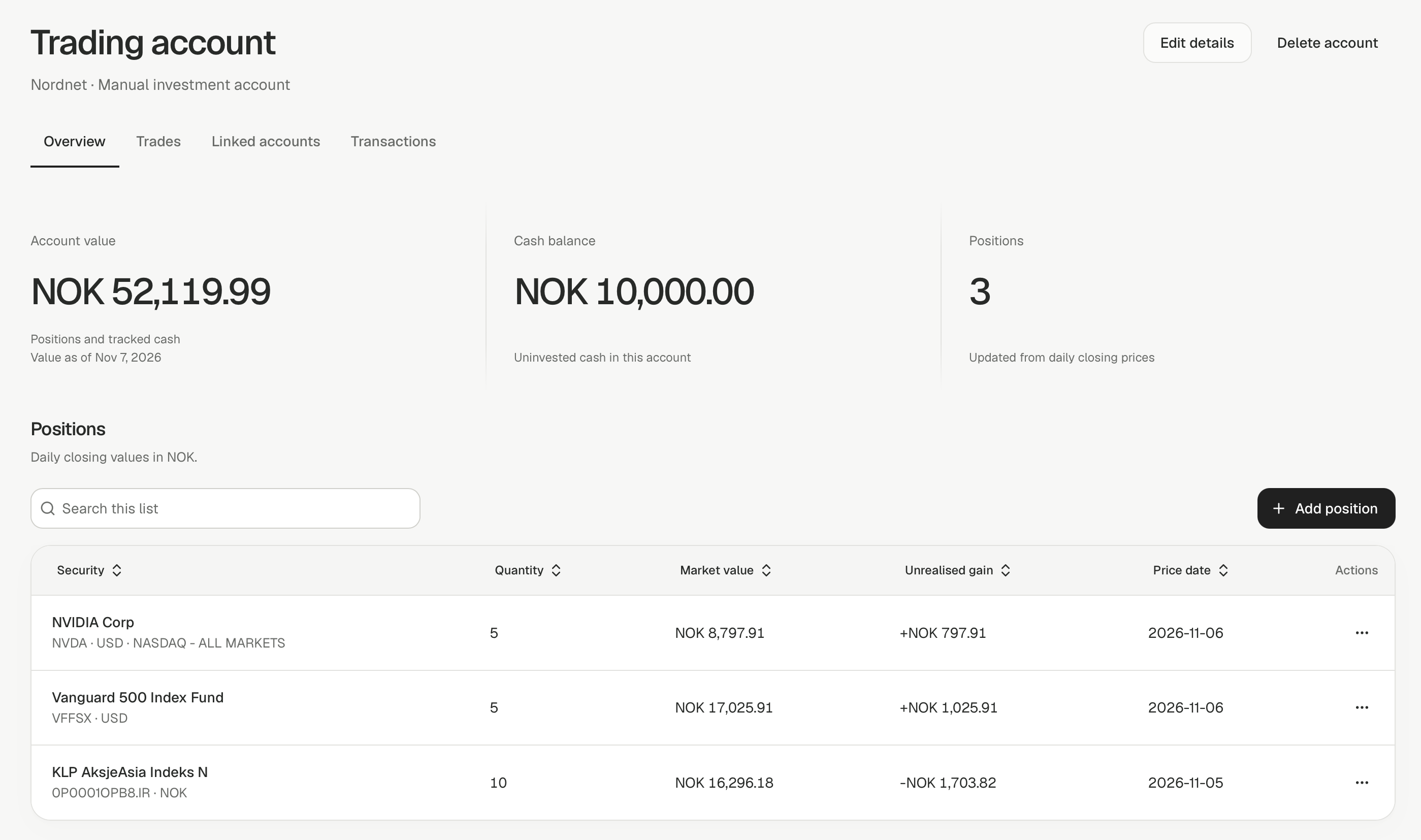
Under Investments, add an account, then search by name or ticker for a stock, ETF, or fund you hold. Choose the listing and enter how many units you own, including fractional units. If you also enter what you paid, Synci shows the unrealized gain or loss on that position.
You enter your holdings and record buys and sells when you trade. Synci handles the pricing. Each position shows its price date, so you can tell when it was last valued. You can also track uninvested cash; trades and matched transfers from your designated bank account update that balance.
Match transfers between your accounts
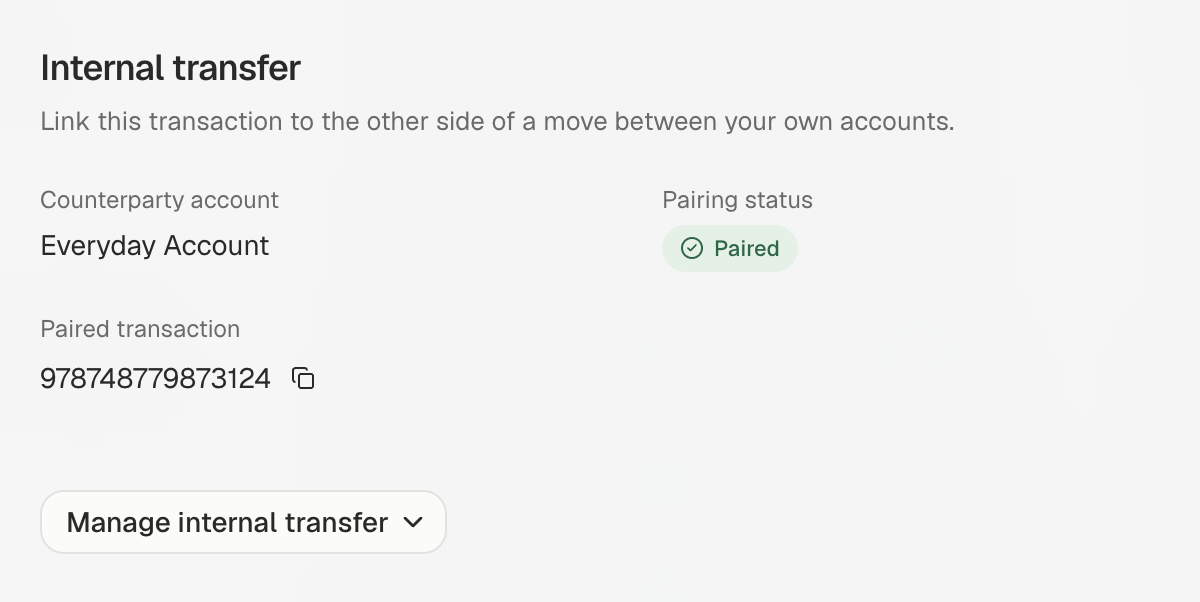
Set a transaction’s counterparty account by hand or with a rule. Synci looks in the other account for the opposite amount in the same currency within three days. If it hasn’t found a match after five days, the transaction appears in Needs review, where you can pair it yourself, including across currencies.
Select up to ten transactions and choose Mark as transfer to… to mark them together. You can also ask Synci to suggest a rule and see what it would have matched over the past twelve months. YNAB receives a paired transfer and creates the other side itself. While a match is pending, Synci holds it back from YNAB and Lunch Money. Google Sheets and Notion have an optional Counterparty account column.
Apply a rule to existing transactions
Open a rule and choose Apply to existing transactions to preview how many transactions would change. You can follow the run in the background and undo the whole run, including the paired side of a transfer. You can also see which rules ran on an individual transaction in its rule logs.
Create destination accounts while linking
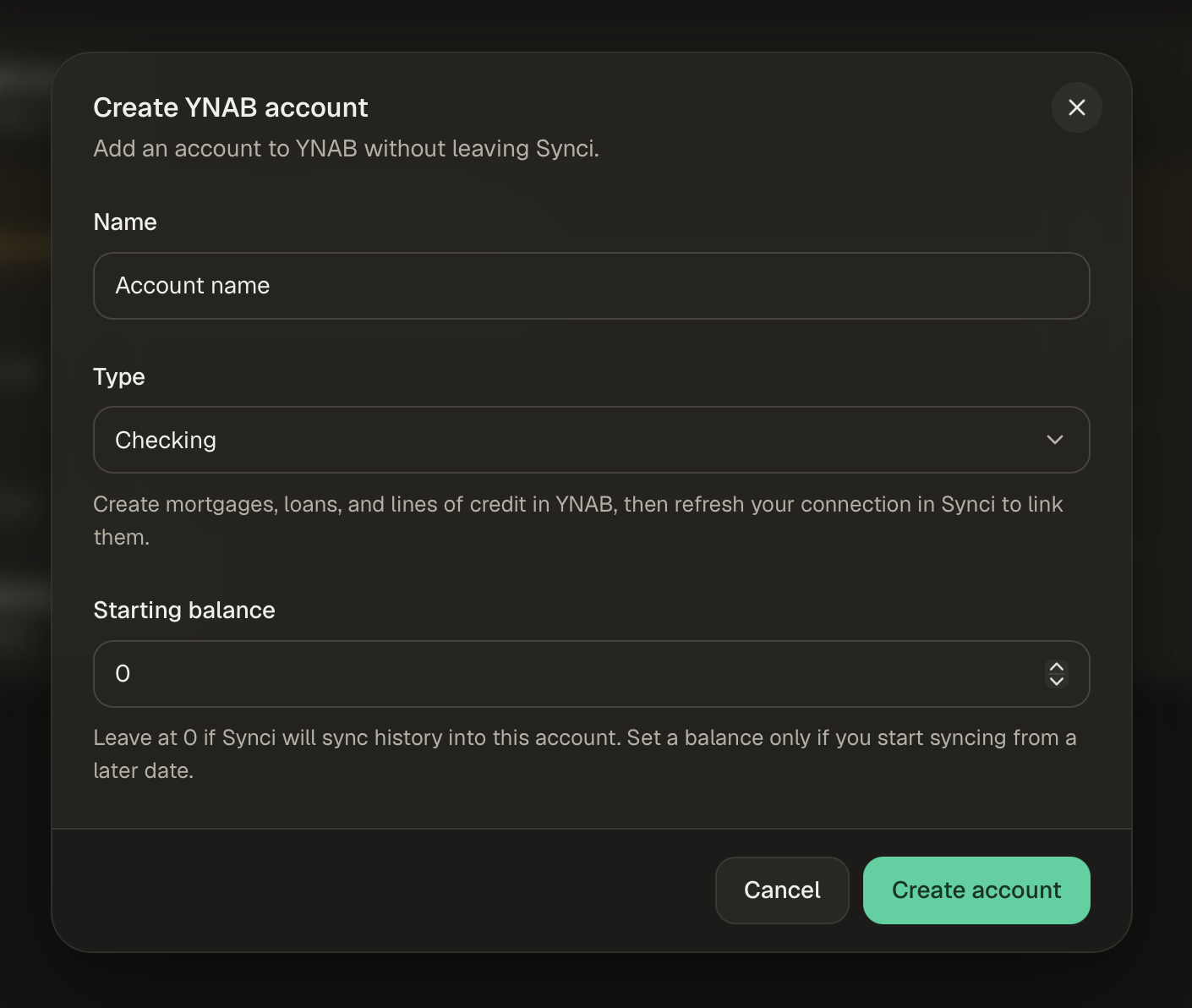
Choose New account when linking to YNAB or Lunch Money, or from the destination page. Pick the account type and starting balance, then link it without leaving Synci. The linking wizard can also create or attach a Google Sheets spreadsheet or Notion page.
For developers
The API now supports creating manual accounts, importing statements, and managing investment positions and trades. Imported transactions carry origin: IMPORT and an import_batch_id in API responses and webhooks. Transactions can also include counterparty, entry_type, and source_transaction_id. See the API docs for account types, rule suggestions, and applying rules to existing transactions.
Availability
Basic includes one manual account: a bank account or a loan. Pro and above can add multiple manual accounts and also have access to investment tracking.